Scanner Linker 2.0 Live Mil Prog125 ProgBC ProgDN
RRUK Scanner Linker 2.0 - Automatic Frequency Lookups
Now with local logging, audio recording, code matching, live mil & more
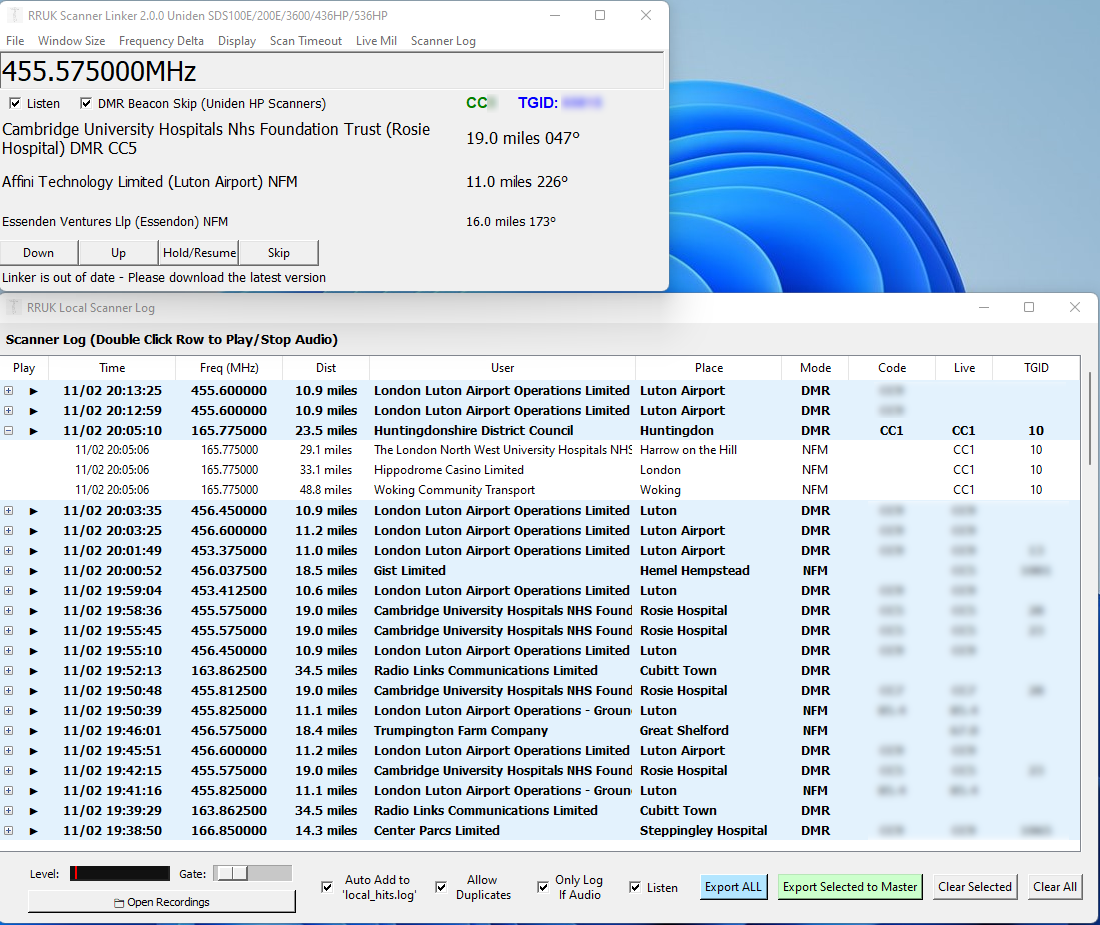
DMR Beacon Skip
If using a Uniden HP type Scanner (SDS100E/200E, UBC3600XLT, BCD436HP/536HP) a DMR Beacon Skip checkbox will be displayed in the main window. This analyses the current channel data and will resume searching or scanning if the analysis has concluded the scanner is stuck on a beaconing DMR signal or a Tier 3 control channel. For this option to work optimally you also need to connect the scanner audio to your mic or line input.Scan Timeout
A global scan timeout can be set in the main window menu (dependant upon scanner used). This will force the scanner to resume scanning after the fixed time selected, ideal for unanttended logging and recording.Logging and Audio Recording
Selecting "Scanner Log" from the menu will open the new log window. If you have previous log entries you will be prompted to restore the old log, this is useful if you wish to continue logging over multiple sessions.Local Log Window
To use the recording feature, you need to connect your scanner to a microphone or line input on your PC, normally this will be via a 3.5mm audio cable from the earphone socket to the sound card. At the bottom left of the window you will see the audio level meter and gate control, the audio level must be greater than the gate to record. Below this there is an "Open Recordings" button, this opens the folder where the audio recordings are stored. Audio recordings are meta tagged with Date/Time, Frequency, User, Colour Code, TGID, CTCSS, DCS (scanner dependant) so you can playback in the player of your choice and check exactly what was recorded. Recordings can also be played directly from the log grid by double clicking the row (double click again to stop playback). There are 4 checkboxes at the bottom of the window.- Auto Add to 'local_hits.log' - If checked hits are also stored to a file called local_hits.log.
- Allow Duplicates - If checked each hit is recorded on a new line. (Recommended)
- Only Log If Audio - If checked entries will only be logged if audio was detected, scanner audio must be connected. (Recommended)
- Listen - If checked the audio input the scanner is connected to will also be routed to the PC sound output so you can listen. (Recommended)
Exporting
The Export ALL and Export Selected to Master will export entries to the Master Log, which will open, and then can be exported to a csv file. The recommended operation is to click the "+" symbol (where there is more than one option), select the matching entry then export that to your Master Log for saving. Export All exports all parent level matches where the nearest signal was selected (or code matched) but may not be the actual correct match, we recommend exporting the selection individually.
Live Mil and Mil Logging
Live Mil and logginf of Live Mil remains the same as previous.
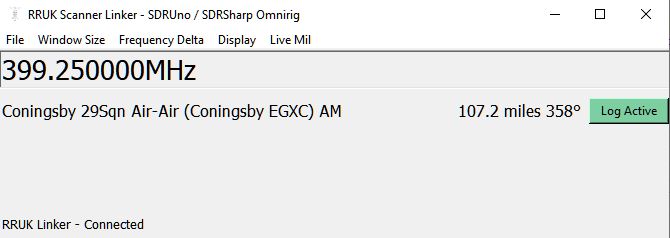
When you stop on an active Military Airband frequency simply press the green "Log Active" button to add the frequency to our Live Mil system.
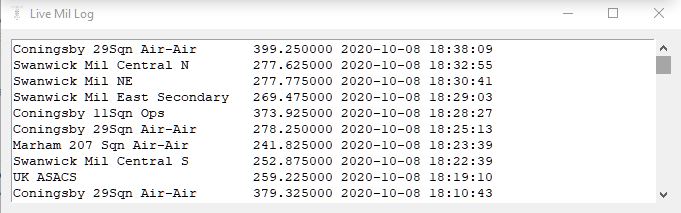
Live Mil frequencies can be viewed on the web at the Live Mil page or directly within the Linker App via the Live Mil log window.
Recent History
New v2.0.0 released February 2026v1.0.21 released October 2025
Added support for Icom R15
v1.0.18 released 9th April 2023
Fixes an issue with the UBC3500XLT
1.0.16 - Scanner linker now supports Proscan Current Channel.txt file. In Proscan goto Options, General then tick "Write Current Channel Information To Current Channel.txt"
From the Scanner Linker Radio Select Button, select Proscan and navigate to your Proscan Current Channel.txt
The RRUK Scanner Linker is a small PC program offered as a free of charge extra to subscribers with an Active Subscription, if you cancel your subscription it will
cancel access to scanner linker.
Scanner Linker provides a link between your radio scanner or SDR, your RRUK account and the RRUK database for superfast identification of what you are listening to.
Scanner linker currently supports the following scanners with no additional software, and only requires Omnirig to interface your SDR with SDRSharp or SDRUno:-
- Uniden SDS100E / SDS200E
- Uniden UBC3600XLT
- Uniden BCD436HP / BCD536HP
- Uniden UBC125XLT
- Uniden (U)BCD160DN / (U)BCD260DN
- Uniden BCT15 / BCT15x
- Uniden UBC3500XLT / BC396T / BCD396XT / UBC800XLT
- Whistler TRX-1 / TRX-2 / WS1080 / WS1098 / WS1095
- AOR DV1 / DV10 / AR8600
- Icom R15 / R30 / R8600
- SDRUno
- SDR Sharp
- Proscan Channel File
Scanner Linker 2.0 with Log Window
Download Scanner Linker
Click here to download Scanner Linker v2.0.0 (New Version)Click here to download Scanner Linker Omni Rig Profile
Click here to download Scanner Linker v1.0.21 (Old Version)
How Scanner Linker Works
Scanner linker uses your RRUK account and postcode to download a database tailored to your local area, it downloads all frequencies within a 50 mile radius of your postcode as well as all Airport, Airfield, Military Airband and Nationwide frequencies. Scanner linker then connects directly to your scanner and gets the frequency you are tuned to, it then does a superfast lookup against the database it has automatically downloaded and displays the nearest 3 users of that frequency. Each time you start Linker it updates the database so you're always up to date.
To use scanner linker you need to connect your scanner to your Windows PC or Laptop, for many scanners this is simply a USB cable, for some of the older models such as the AOR AR8600 they require a USB to RS232 adapter cable. Scanner linker connects directly to the COM port your scanner is attached to, it reads the frequency you are tuned to and displays the 3 nearest matches including distance from you and the direction in degrees. For recording and for some features, an audio connection between the scanner and your PC is required.
Scanner linker doesn't require any third party software to talk to your scanner, you simply run our app and it does all the work.
Scanner Linker with SDRs - SDRUno / SDRSharp
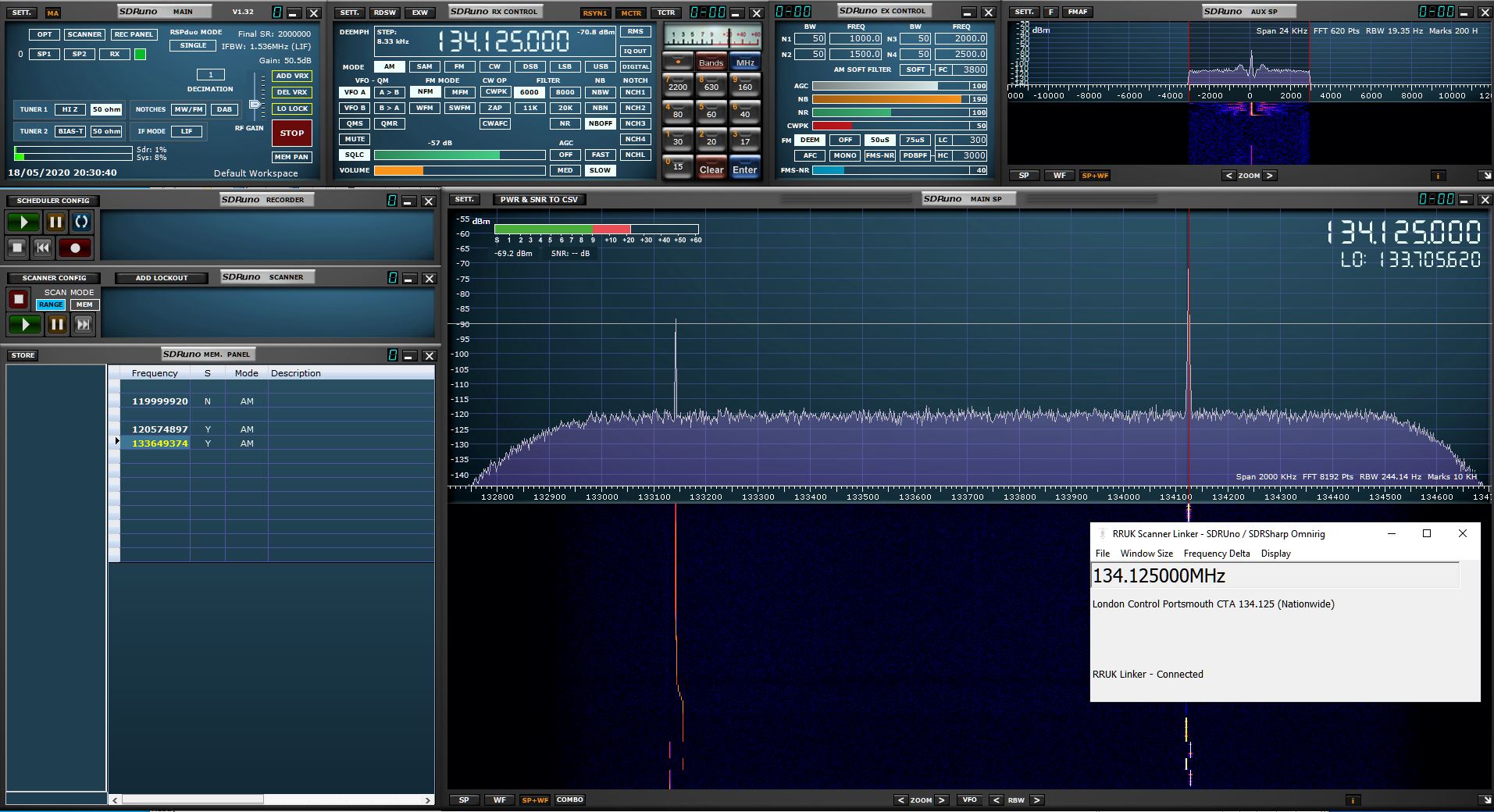
Scanner linker can operate with your SDR using SDRUno or SDRSharp software, to make things simple Scanner Linker uses its own Omnirig profile to talk to SDRUno and SDR Sharp, Omnirig is a free utility for radio and scanner control, SDRUno has Omnirig functionality built directly into it and SDRSharp has a plugin module.
View the videos on our Youtube channel
An active RRUK subscription is required to run scanner linker and your PC must be connected to the internet.